Workstation experience
Workstation diagnostics: Wi-Fi, Teams and applications
“Teams keeps cutting out.” You have heard it a hundred times, and the cause is different every time: the access point, the VPN, the broadband router at home, the computer itself. NetDiag installs on the computer in question, takes a measurement every 15 seconds and tells you where the problem comes from, with the evidence to show for it.
Open-access demo, no sign-up: 138 fictional machines and all twelve modules.
COMPUTER processor and memory normal
WI-FI weak signal, 2nd-floor access point 91% busy
VPN tunnel stable
TEAMS three degraded calls since 9 am, loss on the Wi-Fi side
verdict probable cause: the 2nd-floor access point. PDF report ready.
What NetDiag sees from the computer
A verdict every 15 seconds
Computer, Wi-Fi, VPN, line, DNS or service: each measurement points to the weak link. Over a day, you see when the trouble starts, how long it lasts and what explains it.
Real call quality
Packet loss, jitter and latency on Teams calls and Citrix sessions, as the computer actually experienced them. At last you and the user are talking about the same call.
The access point, seen from the controller
The state of the access point the computer is connected to, its channel and its load, read from the Wi-Fi controller. A saturated access point is easy to tell apart from a tired network card.
Traceroute and capture at the right moment
When quality drops, NetDiag runs the traceroute and packet capture itself. You have a record of the incident without having to reproduce it in front of the user.
A report to pass on
A clear PDF for the carrier, the Wi-Fi contractor or the application vendor, with the measurements and the exact times of the drop-outs.
It leaves without a trace
Installed for the duration of the diagnosis, then uninstalled in one click. Nothing is left behind on the computer.
In the console
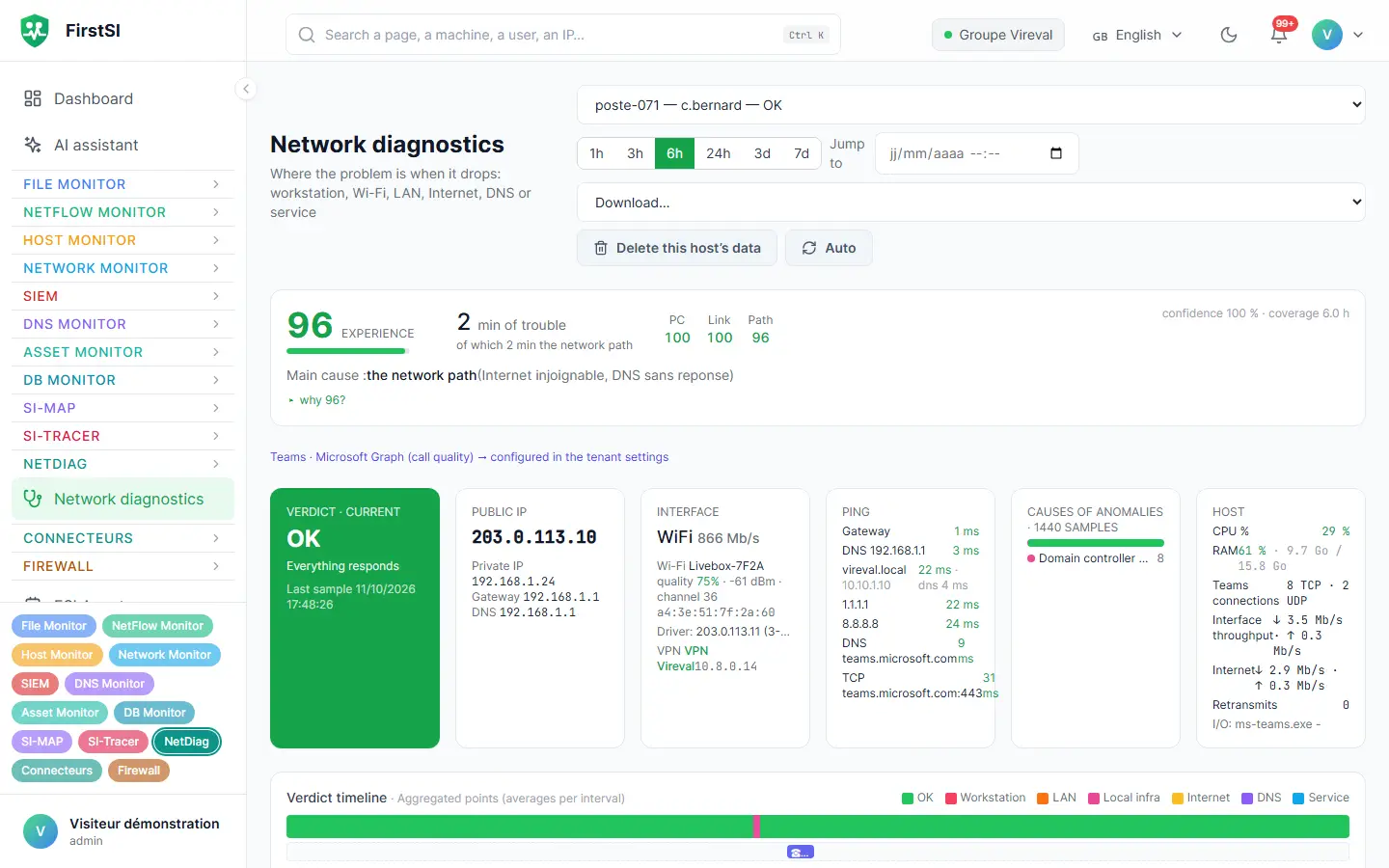
Screens from the live demo, with the data of a fictional company.
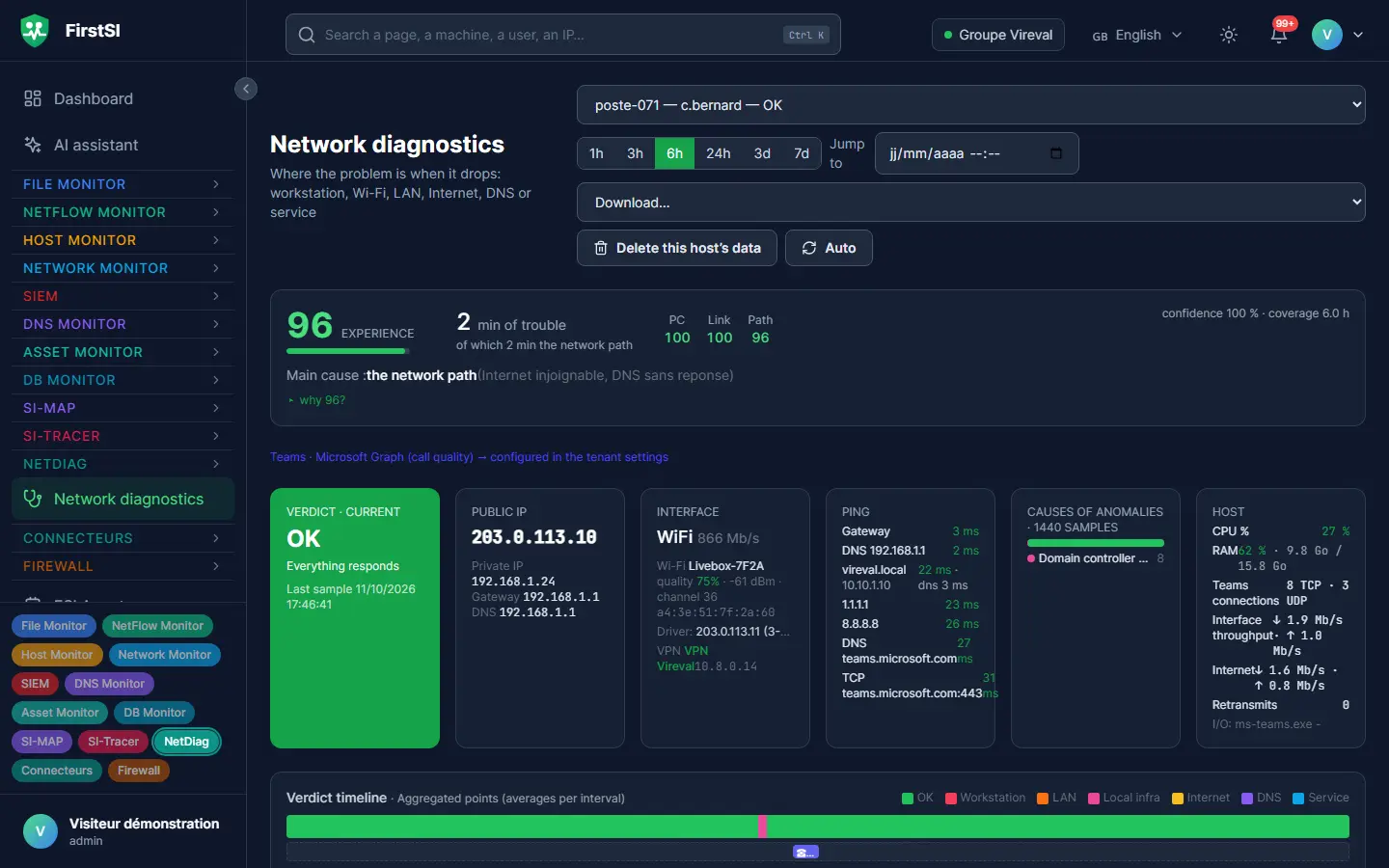
Wednesday, 10:30 am
The meeting room where Teams keeps dropping
For two weeks, meetings in the second-floor room have been going badly. The sound breaks up, the video freezes, and everyone has a theory: the room's laptop, the fibre, Microsoft.
You install NetDiag on the room's laptop at 9 am. By 10:30 am it has already recorded three degraded calls, and its verdicts agree: the computer is fine and so is the VPN, but the nearby access point is 91% busy and the laptop clings to it despite a weak signal. Ten metres away, another access point is almost empty.
You rebalance the channels and the room switches to the right access point. The 2 pm meeting goes ahead without a single drop, and the PDF report goes off to the Wi-Fi contractor with the measurements.
09:00 INSTALLED one measurement every 15 s
09:42 TEAMS degraded call, 6% loss
09:42 WI-FI 2nd-floor access point 91% busy
10:15 CAPTURE traceroute and capture recorded
10:30 verdict cause: the 2nd-floor access point. Computer and VPN healthy.
How it works
Install on the computer concerned
From the console, in one click, on the computer of the person who is complaining or on the one in the meeting room.
Let it measure
One measurement every 15 seconds, an alert when quality drops, and evidence collected at the right moment.
Read the verdict
One verdict per measurement, a summary of the day and a PDF report. Then you uninstall it.
Frequently asked questions
Does NetDiag slow the computer down?
No. Its measurements are light and spaced 15 seconds apart. It is built to run during a meeting without anyone noticing.
Does it work for people working from home?
Yes. It also measures the home broadband router and the VPN, so you can tell whether the problem lies at home or at the office.
Which applications are measured?
Teams calls and Citrix sessions are tracked in detail. For other applications, NetDiag measures the path to the service and its response time.
What about tablets?
With the Google Workspace connector, FirstSI lists your tablets, their system and app versions and their last sync. A tablet that has fallen behind is spotted straight away.
Should I tell the user?
It is a good idea, since NetDiag is installed on their computer for a few hours or a few days. It does not read messages or files: it measures the network and the calls.
More questions about installation, hosting, GDPR or integrations? All frequently asked questions
Take it further
The same data serves more than one purpose. These pages show it from other angles.
Multi-site network monitoring
SD-WAN, tunnels, Wi-Fi, carrier links.
Learn more AI assistantAI assistant and ticket pre-diagnostics
AI on your premises, tickets already checked.
Learn more IT monitoringUnified IT monitoring
Twelve modules, one console, a single agent.
Learn moreIn the documentation
Put an end to “Teams keeps cutting out” tickets
A guided demonstration shows you a real NetDiag verdict, from the first degraded call through to the PDF report.